Category: Products

  • Claude 2.1: Anthropic’s ChatGPT Rival’s Big Update!

    Claude 2.1: Anthropic’s ChatGPT Rival’s Big Update!

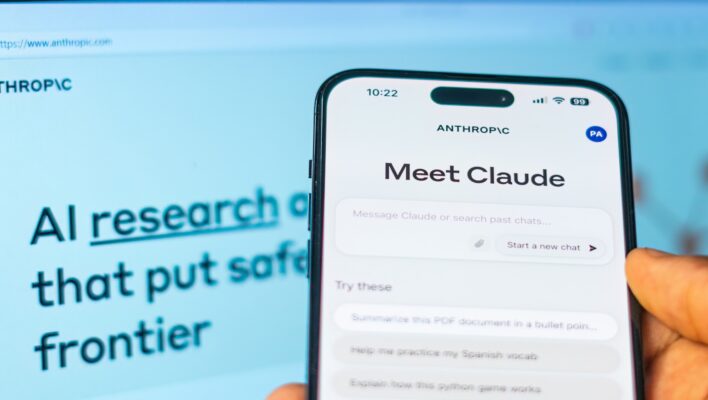
    Anthropic has launched Claude 2.1, its latest and most advanced language model. By far the biggest and most noteworthy difference between Claude 2, which launched earlier this year, and Claude 2.1 is the amount of information that can be relayed to Claude via its message box.

    Previously 128,000 tokens, Claude’s context window has now been enlarged to 200,000 tokens.

    That’s around 150,000 words, or 500 pages of material – roughly equivalent to one cover-to-cover copy of Charlotte Bronte’s Jane Eyre.

    Anthropic says that Claude 2.1 will be able to “summarize, perform Q&A, forecast trends, compare and contrast multiple documents, and much more” and expects the latency to “decrease substantially” as the technology develops.

    Read More

  • Microsoft adds Copilot for Sales & Service!

    Microsoft adds Copilot for Sales & Service!

    The Copilot for Service application integrates with customer relationship management (CRM) applications, and contact or call center applications — including Salesforce, ServiceNow, and Zendesk — to provide “guidance,” said Microsoft. The program can be trained to retrieve answers from a company’s knowledge base and from the CRM and contact center application repositories.

    The results, said Microsoft, are “AI-guided answers and resources personalized for each customer issue and conversation.”

    Further customization of functions is made possible by Copilot Studio, a development application also unveiled at Ignite.

    The Service application, expected to be available “in early 2024,” is priced at $50 per user per month. 

    The second application, Copilot for Sales, is an “evolution” of a program unveiled for Dynamics 365 this summer called Sales Copilot. Enhancements to the program include integration with Microsoft Word. 

    “Sellers can prompt Copilot to create a meeting preparation brief in Microsoft Word, automatically populated with customer information such as an account and opportunity summary, names and titles of meeting participants, open tasks, highlights from recent meetings and email threads, and more,” said Microsoft. 

    Another integration is with Microsoft Teams, which “can surface action items and tasks, conversation key performance indicators (KPIs), and sales keywords.”

    Copilot for Sales has the same pricing and availability as Service. 

    Both the Service and Sales applications are included with Microsoft 365 Copilot.

    In addition to Service and Sales, Microsoft announced additional features for Dynamics 365. For example, in Dynamics 365 Sales is gaining a feature for a salesperson to “use natural language or pre-built prompts to gain a quick understanding of customers, deals, meetings, forecast, and more,” said Microsoft.

    Read More
  • Get an AI generated resume?

    Get an AI generated resume?

    Get an AI-Crafted Cover Letter, Resume, and Follow-up Email Instantly – in any language with AI Apply.

    AIApply is a job search tool that uses artificial intelligence to expedite the employment search process. It is powered by sophisticated AI algorithms that help job seekers create personalized cover letters, refine resumes, and generate follow-up emails. 

    AIApply is the world’s first-ever Artificial Intelligence platform that finds, matches, and applies up to 4000 real-time posted reliable jobs on your behalf in your 3 selected countries. You no longer have to manually apply jobs all day 2.

    In summary, AIApply is a powerful job search tool that leverages AI to streamline the job application process. Its features include the Job Application Kit Generator, Automated Prospecting, Generative AI-powered sales assistant, AI-powered Call Summarization and Exploration, Process Intelligence, and Sales Cloud Everywhere. These features are designed to help job seekers create personalized cover letters, refine resumes, and generate follow-up emails, while also helping sales teams research accounts, update their CRM, and prepare for meetings. AIApply is a game-changer for job seekers and sales teams alike

  • ChatGPT vs. Google Bard: Which gives the better answers?

    ChatGPT vs. Google Bard: Which gives the better answers?

    The rise of generative AI models in the Big Tech industry has been swift and undeniable. The surge in interest was catalyzed mainly by OpenAI’s introduction of ChatGPT-3 on November 30, 2022. A generative AI language model that is incredibly good at predicting which words should follow one another when you feed it with prompts. Not to be left behind, Google had been developing a similar technology known as LaMDA. However, after OpenAI’s ChatGPT took the world by storm, the company was forced to release an early version of its AI model.

    That’s how we got Bard, Google’s first publicly available chat-based generative model. Considering the competition, a key question comes up. Can Google Bard keep up with OpenAI? To find out, we compared ChatGPT-3.5, ChatGPT-4, and Bard to see how they performed in different tasks.

    Read More

  • How to build your own GPT chatbot without coding (From Digital Trends)

    How to build your own GPT chatbot without coding (From Digital Trends)

    To create your own custom GPT chatbot, follow these steps, requiring a moderate level of difficulty and approximately 30 minutes. Ensure you have a desktop PC, laptop, or smart device with the ChatGPT app and a GPT-Plus subscription.

    1. Access ChatGPT Platform: Navigate to the ChatGPT website or open the ChatGPT app and log in. If you don’t see the “Create a GPT” button, the Custom GPT feature might still be rolling out globally. Wait for a day or two and try again.
    2. Initiate Custom GPT: Click on the “Create a GPT” button at the top of the page.
    3. Provide Details:
      • Give your custom GPT a name, description, and custom instructions. This functions as a preamble specific to this GPT.
      • Utilize the Preview window on the right to observe how the AI responds to prompts. Adjust instructions on the left until you’re satisfied with its performance.
    4. Incorporate Data:
      • Optionally, add specific data such as documents and files for the AI to reference. Observe how this affects the AI’s operations, and adjust instructions accordingly.
    5. Adjust Functions:
      • Tailor the potential functions of the AI. Decide if you want it to possess DALL-E art generation abilities, access the Bing search engine, or perform deeper data analytics.
      • Customize plugin access if applicable.
    6. Review and Finalize:
      • Evaluate the AI’s performance and adjust settings as needed.
      • Once satisfied, click the green “Publish or Update” button to finalize your custom GPT.
      • Your newly created custom GPT will appear in the left-hand menu with OpenAI GPTs and any other creations.

    By following these steps, you can quickly and effectively create a custom GPT chatbot tailored to your preferences and requirements. Keep in mind that a GPT-Plus subscription is necessary to access the Custom GPT feature.

    Original Article