Category: Models
-

How AI Could Save (Not Destroy) Education
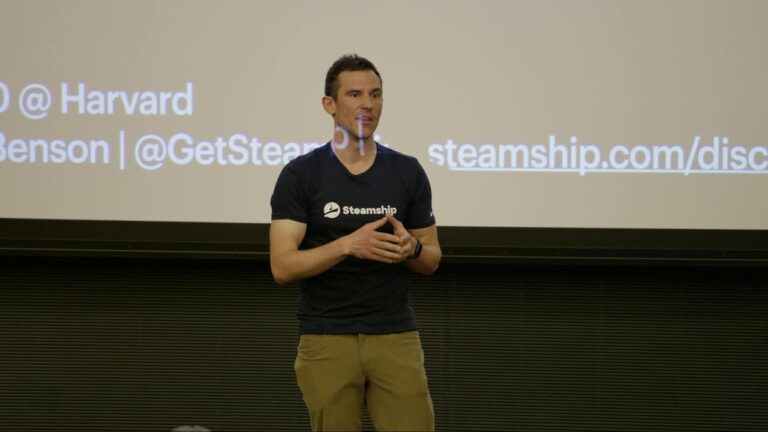
In this TED Talk, Sal Khan, the founder of Khan Academy, talks about how artificial intelligence (AI) can be used to improve education by providing personalized tutoring, coaching, feedback, and guidance for students and teachers. He demonstrates some of the features of their AI chatbot, Khanmigo, which can help students learn math, coding, literature, history, and more, and can also help teachers prepare lessons, assess students, and save time. He argues that AI can be a positive transformation for education if we use it wisely and ethically, and that it can help us achieve the 2 sigma problem, which is to give every student the benefits of one-to-one tutoring
-
What are Generative AI Models?
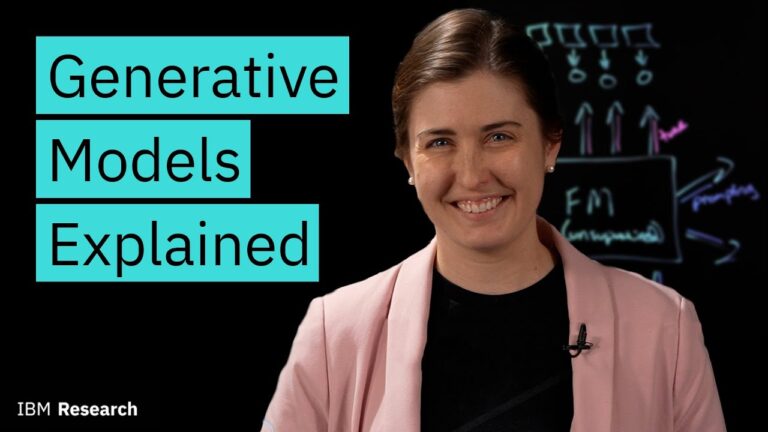
This video by IBM Technology introduces the concept of foundation models, which are a type of generative AI that can perform various tasks across different domains by learning from large amounts of unstructured data. The video focuses on large language models (LLMs), which are foundation models that can generate and understand natural language. The video explains how LLMs work, how they can be tuned or prompted to perform specific tasks, and what are the advantages and disadvantages of using them. The video also gives examples of how IBM is innovating with foundation models in various domains, such as vision, code, chemistry, and climate change1
-
How to build your own GPT chatbot without coding (From Digital Trends)
To create your own custom GPT chatbot, follow these steps, requiring a moderate level of difficulty and approximately 30 minutes. Ensure you have a desktop PC, laptop, or smart device with the ChatGPT app and a GPT-Plus subscription.
- Access ChatGPT Platform: Navigate to the ChatGPT website or open the ChatGPT app and log in. If you don’t see the “Create a GPT” button, the Custom GPT feature might still be rolling out globally. Wait for a day or two and try again.
- Initiate Custom GPT: Click on the “Create a GPT” button at the top of the page.
- Provide Details:
- Give your custom GPT a name, description, and custom instructions. This functions as a preamble specific to this GPT.
- Utilize the Preview window on the right to observe how the AI responds to prompts. Adjust instructions on the left until you’re satisfied with its performance.
- Incorporate Data:
- Optionally, add specific data such as documents and files for the AI to reference. Observe how this affects the AI’s operations, and adjust instructions accordingly.
- Adjust Functions:
- Tailor the potential functions of the AI. Decide if you want it to possess DALL-E art generation abilities, access the Bing search engine, or perform deeper data analytics.
- Customize plugin access if applicable.
- Review and Finalize:
- Evaluate the AI’s performance and adjust settings as needed.
- Once satisfied, click the green “Publish or Update” button to finalize your custom GPT.
- Your newly created custom GPT will appear in the left-hand menu with OpenAI GPTs and any other creations.
By following these steps, you can quickly and effectively create a custom GPT chatbot tailored to your preferences and requirements. Keep in mind that a GPT-Plus subscription is necessary to access the Custom GPT feature.